Best Settings for Hosting a Live Blooket Classroom Game
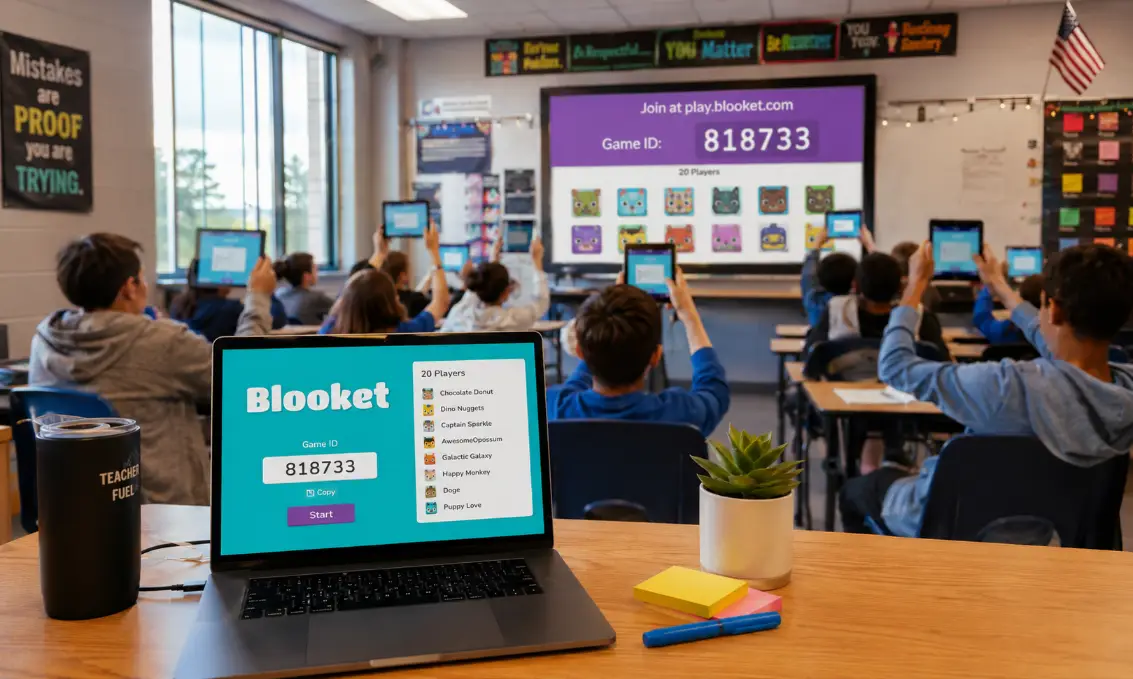
Hosting a live classroom game on Blooket can turn an ordinary lesson into an exciting learning experience. However, the wrong settings may create confusion, distractions, or technical issues for students. Choosing the best game options, time limits, and classroom controls helps teachers keep students engaged while maintaining a smooth and productive learning environment.
Best Settings for Hosting a Live Blooket Classroom Game
The best settings for a live Blooket classroom game depend on your students’ age, class size, and lesson goals. Start by selecting a simple game mode that students already understand. Set clear time limits, enable random names if privacy matters, and use moderate question pacing to keep the game balanced. For most classrooms, a game duration of 10 to 20 minutes works well because it maintains focus without causing fatigue.
Teachers should also test internet connectivity and classroom devices before launching the game. A stable connection prevents delays and frustration during gameplay. Turning on answer review can help students learn from mistakes immediately, which improves knowledge retention.
Another helpful setting is limiting late joins during competitive rounds. This keeps the game organized and prevents interruptions. If younger students are playing, shorter rounds and easier question sets improve participation and confidence.
Choosing the Right Game Mode
Different game modes create different classroom experiences. Picking the right one can make the session more effective and enjoyable.
Competitive Modes for High Energy
Competitive modes work best for revision sessions, quizzes, and classroom challenges. These settings encourage students to answer quickly and stay focused. However, too much competition can discourage some learners, especially younger students.
For balanced competition, use moderate speed settings instead of extremely fast-paced rounds. This gives all students a fair chance to participate.
Team Modes for Collaboration
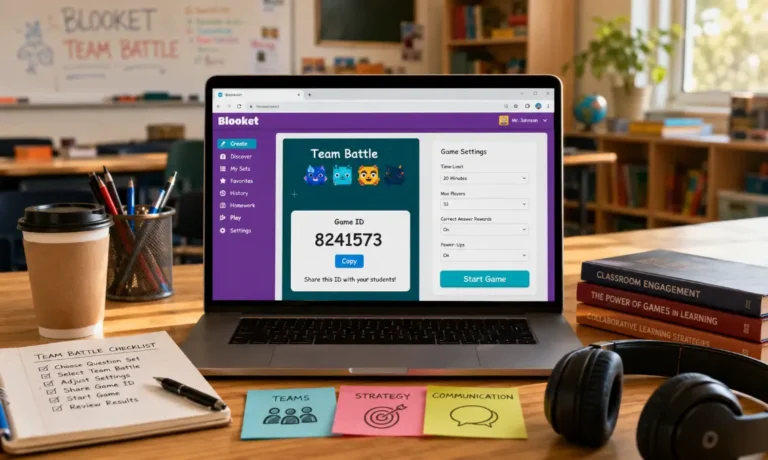
Team modes encourage communication and cooperation. They are useful for group learning activities where students solve problems together. Team-based gameplay also reduces pressure on shy learners who may feel nervous playing alone.
Teachers can create balanced teams by mixing stronger and weaker students together. This encourages peer learning and improves classroom interaction.
Solo Modes for Independent Learning
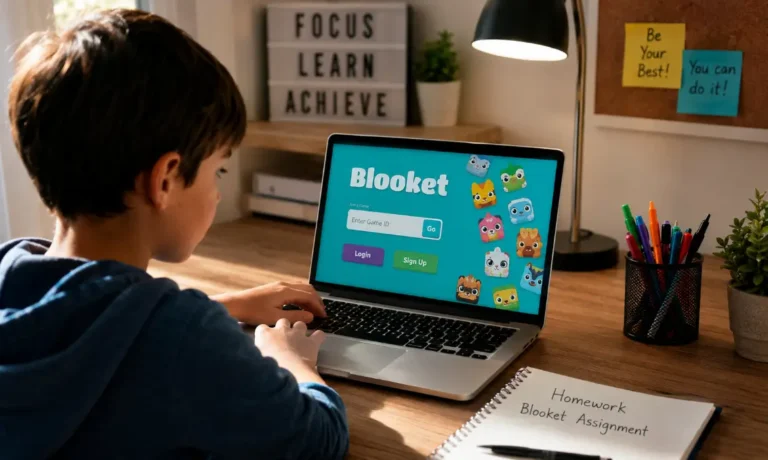
Solo game settings work well during assessment practice or homework review. Students can focus on their own progress without comparing scores constantly with classmates.
These modes are especially useful for quiet classrooms or independent study periods.
Ideal Time Settings for Classroom Games
Time management plays a major role in keeping students engaged during live games.
Short Sessions for Younger Students
Elementary students usually respond better to quick activities lasting around 10 minutes. Short sessions help maintain excitement and prevent distractions.
Questions should also have slightly longer answer times so younger learners can read carefully without stress.
Longer Sessions for Older Students
Middle school and high school students can handle longer sessions between 15 and 25 minutes. Older learners generally enjoy more challenging question sets and strategic gameplay.
Teachers can divide long sessions into smaller rounds to maintain concentration.
Avoid Extremely Long Games
Games that continue too long may reduce learning effectiveness. Students often lose focus after extended periods, especially during highly repetitive quizzes.
Ending the session while excitement is still high leaves students with a positive impression.
Best Question Settings for Engagement
The quality and structure of questions directly affect how students participate during gameplay.
Mix Easy and Challenging Questions
A balanced quiz should contain both simple and difficult questions. Easy questions build confidence, while harder questions encourage critical thinking.
If every question feels too difficult, students may stop trying seriously.
Use Clear and Simple Language
Questions should be easy to understand quickly. Long or confusing wording slows down gameplay and creates frustration.
Short, direct questions improve pacing and keep the classroom active.
Include Visual Elements
Images and colorful content make games more interactive. Visual questions can help younger students and visual learners stay engaged during lessons.
Teachers often use diagrams, maps, and pictures to make quizzes more interesting.
Managing Classroom Behavior During Live Games
Excitement during games can sometimes create noise and distractions. Proper management settings help maintain classroom control.
Set Clear Rules Before Starting
Students should understand classroom expectations before the game begins. Explain rules about shouting answers, device usage, and respectful behavior.
Simple instructions reduce confusion during gameplay.
Monitor Student Progress
Teachers should watch the live leaderboard and student participation carefully. Monitoring helps identify students who may be struggling or disengaged.
Encouraging positive participation instead of only rewarding winners creates a healthier classroom atmosphere.
Use Muted or Relaxed Modes When Needed
Some classrooms become overly loud during competitive games. In these situations, relaxed game settings or quieter modes can help maintain order.
Teachers can also pause games briefly to regain attention if needed.
Technical Settings That Improve Gameplay
Technical preparation is just as important as classroom management when hosting live educational games.
Check Internet Stability
Weak internet connections can interrupt gameplay and frustrate students. Testing the network before class reduces unexpected technical issues.
If school internet is unreliable, teachers may prepare backup activities in advance.
Test Student Devices
Students should log in and test devices before the official game starts. This prevents delays caused by forgotten passwords or outdated browsers.
Quick preparation saves valuable class time.
Use a Large Display Screen
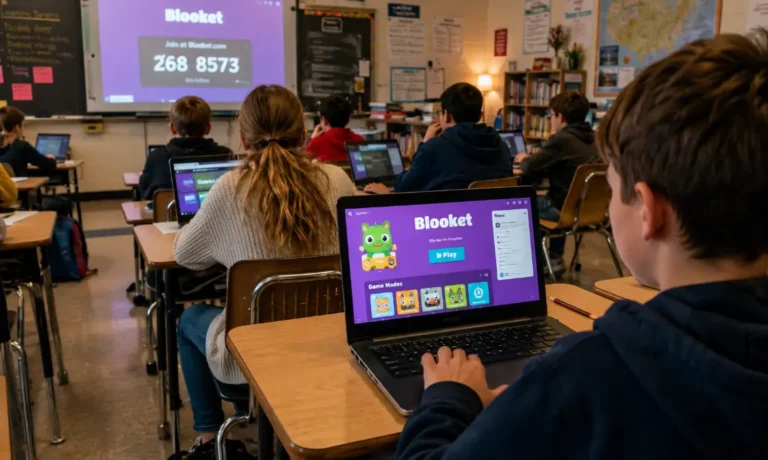
Displaying the game clearly helps students follow instructions and monitor progress. A projector or smartboard improves visibility for the entire class.
Large displays also make countdowns and leaderboards easier to see.
Balancing Fun and Learning
Educational games should support learning goals instead of becoming pure entertainment.
Align Questions With Lesson Objectives
Every game should connect directly to classroom learning targets. Random or unrelated questions may entertain students but provide little educational value.
Focused quizzes reinforce important concepts effectively.
Reward Participation, Not Only Winners
Recognizing effort encourages more students to join actively. Teachers can praise improvement, teamwork, or persistence instead of focusing only on top scores.
This creates a more inclusive classroom environment.
Avoid Overusing Games
While educational games are engaging, using them every day may reduce excitement over time. Mixing games with discussions, projects, and traditional activities keeps lessons balanced.
Moderation helps maintain long-term enthusiasm.
Helpful Tips for First-Time Hosts
New teachers or first-time hosts can improve their experience by starting with simple settings.
Practice Before the Real Session
Running a short practice game helps teachers understand controls and identify potential problems before students join.
Familiarity improves confidence during live sessions.
Start With Small Classes
Testing games with smaller groups makes classroom management easier. Once comfortable, teachers can expand to larger classes confidently.
Smaller sessions also allow teachers to observe gameplay more carefully.
Ask Students for Feedback
After the session, students can share which game modes and settings they enjoyed most. Feedback helps teachers improve future classroom activities.
Student input often reveals useful ideas for engagement.
FAQ
Can students join a live Blooket game without creating an account?
Yes, many live games allow students to join using only a game code.
What is the best class size for live Blooket games?
Most game modes work smoothly with small and medium-sized classrooms.
Should teachers randomize questions during gameplay?
Randomized questions can reduce cheating and keep the game more exciting.
Can live classroom games improve attendance?
Interactive classroom activities often increase student interest and participation.
Final Verdict
Using the right settings in Blooket can transform classroom learning into a fun and organized experience. Balanced game modes, proper timing, clear rules, and reliable technology all contribute to successful sessions. When teachers focus equally on engagement and educational value, live classroom games become powerful tools that motivate students and improve learning outcomes.